Data Analysis in Nodeflip was built for many files. Load a ZIP with a thousand invoices, click a currency, and you are left with the invoices in that currency.
Some data does not come as many files. An accounting export, a product catalog or a dump from an API is often one file with a long list in it. Analyzed as a file, it has nothing to filter: the one file contains every customer, every account and every date, so clicking a value leaves you with the same file.
Analyze per changes the unit. Pick a list, and each of its items becomes a record of its own.
A Ledger as an Example
A SAF-T audit file holds the bookkeeping of a company as one XML file. Its transactions are in a list:
<n1:Journal>
  <n1:Transaction>
    <n1:TransactionID>P-0048690</n1:TransactionID>
    <n1:TransactionDate>2026-06-07</n1:TransactionDate>
    <n1:Description>Sales invoice 248720</n1:Description>
    <n1:Line>...</n1:Line>
    <n1:Line>...</n1:Line>
    <n1:Line>...</n1:Line>
  </n1:Transaction>
  <n1:Transaction>...</n1:Transaction>
</n1:Journal>
After the analysis, the structure tree shows the list with a split icon next to its name. The tooltip names the unit: Analyze per Transaction.
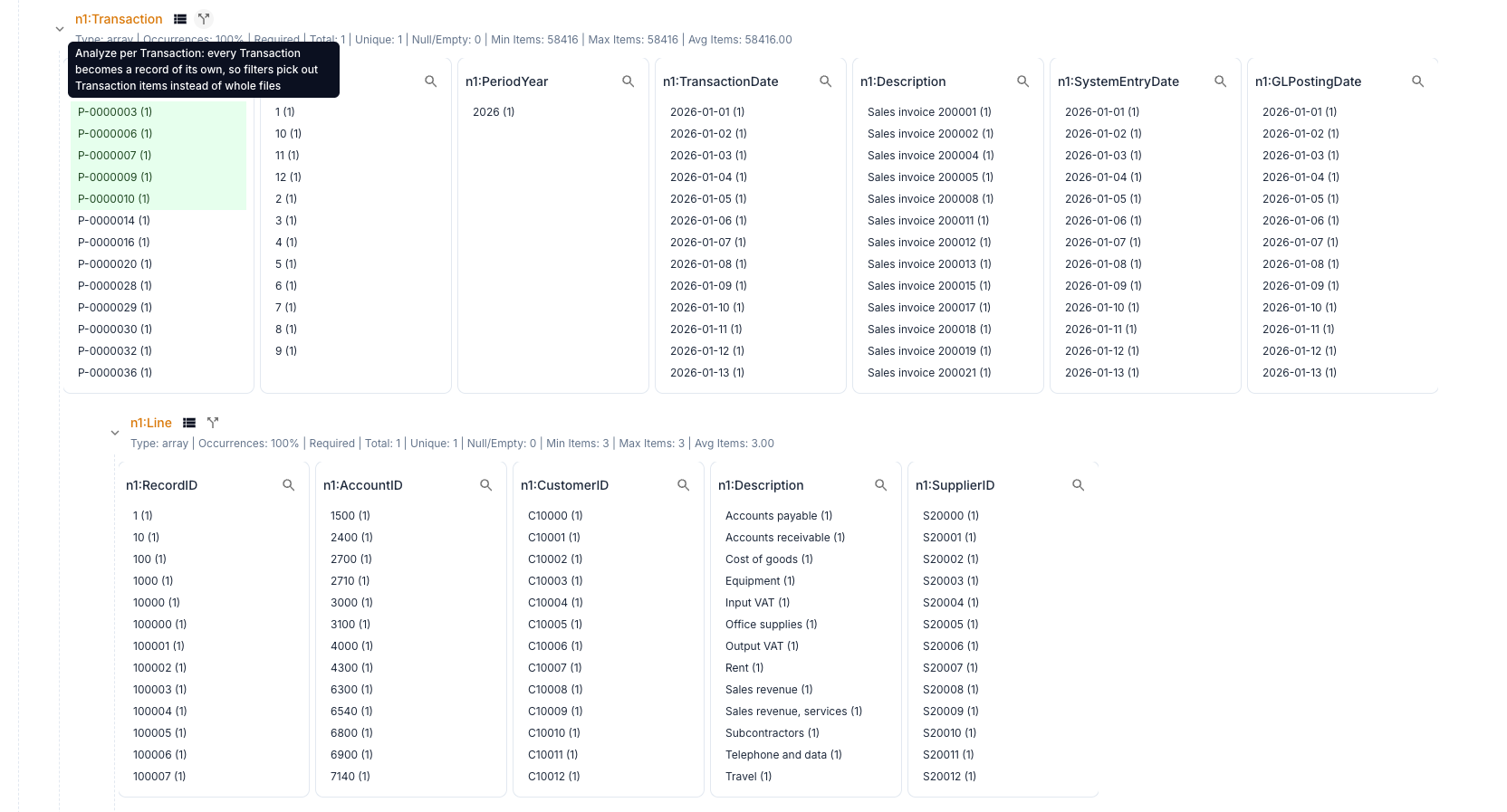
Click it and a new structure appears next to the structure of the file, named Transaction and holding one record per transaction.
Filter the Records
The records are filtered the way files are. Click a transaction date and every other field shows only what occurs in the transactions of that day: their IDs, their descriptions, and the accounts, suppliers and customers on their lines.
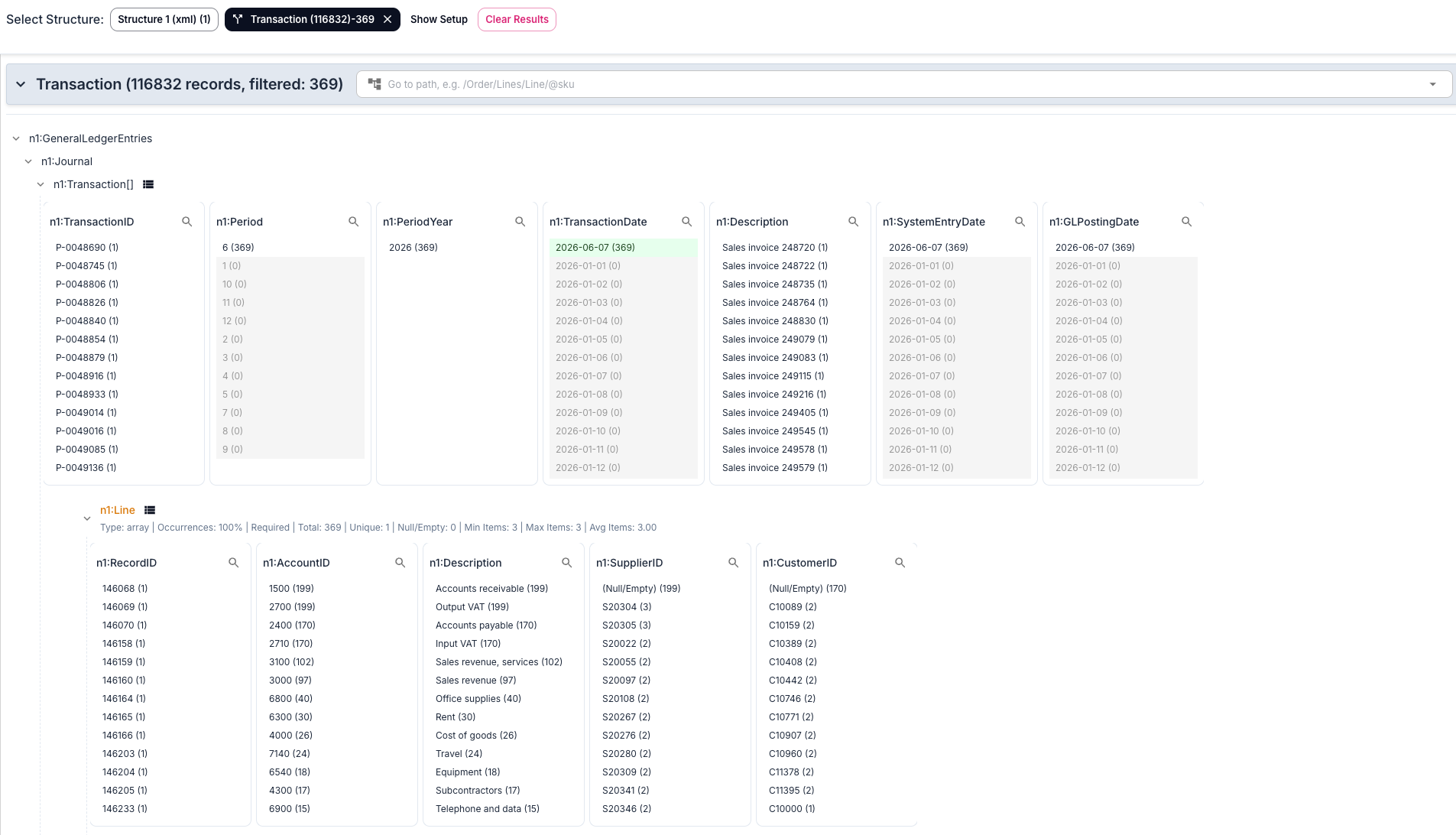
A few things that are good to know:
- Selections follow along. A record keeps the paths it has in its file. A value you selected before splitting is still selected when the records open.
- Lines belong to their transaction. Filter on an account and you keep the transactions that have a line on that account.
- It works across files. With a month of invoices loaded, Analyze per on the invoice lines gives every line of every invoice as a record.
- It works for JSON. Any array of objects can be split in the same way.
- Nothing is replaced. The files and their structure stay. Remove the records with the cross on their structure, or go back and split on another list.
Sum a Field for the Selection
Add a field to the Data Grid (right-click in its list of values and choose Add to grid), choose Sum as its aggregation, and the sum follows the filters. Select a supplier and you have the total for the transactions that match. A transaction is kept whole, so the sum covers all of its lines, not only the line that carries the supplier.
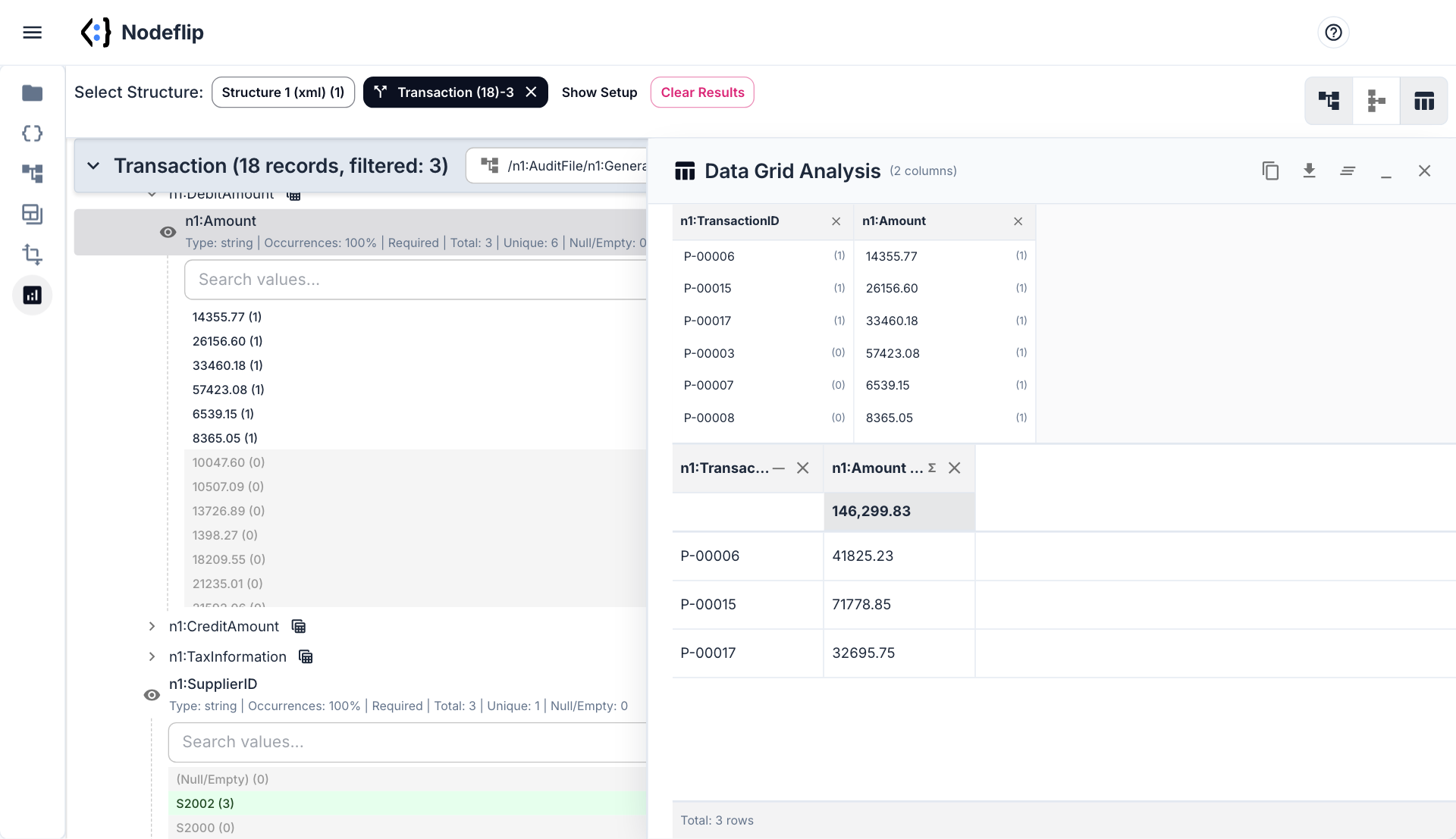
Values in XML are text, so Nodeflip counts a value when it is written as a number, with a point or a comma as the decimal mark, and leaves out the rest. In a SAF-T file, remember that debit and credit amounts are separate fields without a sign, so sum them separately.
Export What You Found
The export menu works on the records that the filters have left:
- Extract Files adds each record to the Files menu as a file of its own.
- Extract into zip adds them as one ZIP.
- Download as zip saves that ZIP to your computer.
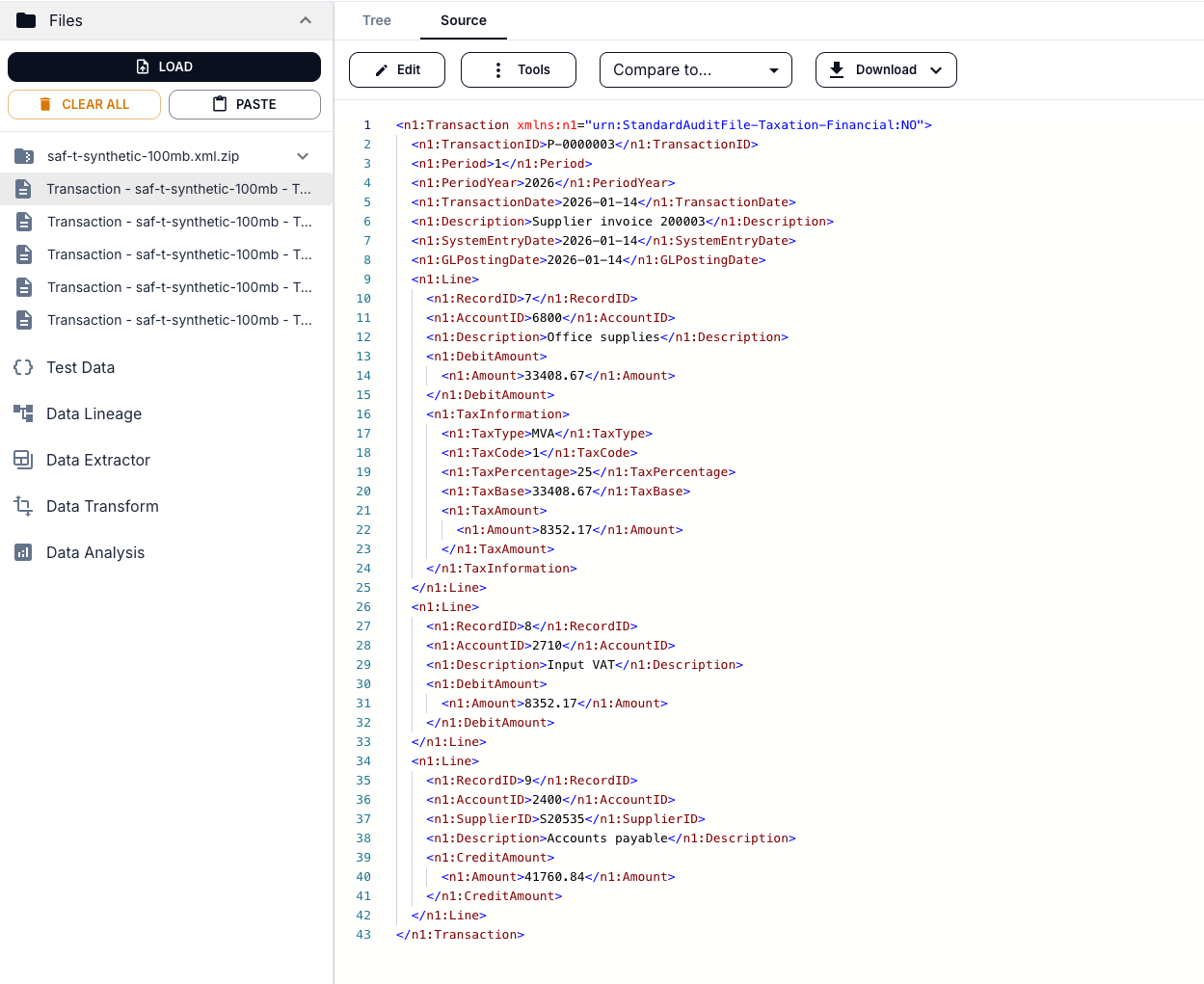
An exported XML record is the element as it stands in the file, with its namespaces declared, so it opens as a complete document. That makes it easy to send the three transactions a question is about, and not the whole ledger.
How Large a File?
Everything runs in the browser, so the answer depends on the memory of your computer. Our own test was a synthetic audit file of 200 MB with close to 117,000 transactions, loaded as a ZIP of 8 MB. It was analyzed and filtered per transaction without trouble. A file of 500 MB was too much for the browser.
Load a large file as a ZIP and go straight to Data Analysis. Opening a file of that size in the tree view takes considerably longer.
Nothing Is Uploaded
A ledger is about the last file that should be pasted into an online tool. The file is read and analyzed in your browser and is not uploaded to a server.
Try It
Open Nodeflip, load a file with a long list in it and run Data Analysis. The details are in the Data Analysis documentation, and the SAF-T file viewer page describes the audit file used in this post.