Most test data starts the same way: someone copies a real file, changes the order number, and saves it under a new name. That works for three files. For a load test with three hundred, or a regression suite that needs unique IDs on every run, you need rules rather than patience.
The Test Data Generator in Nodeflip takes one XML or JSON file as a template and lets you decide, field by field, how the value should be generated in each new file.
One Template, One Rule per Field
Load a representative file and choose it as template. Its structure is shown as a tree, and every field has a dropdown with a behavior. Fields you leave alone keep the value from the template, so you only configure what has to vary.
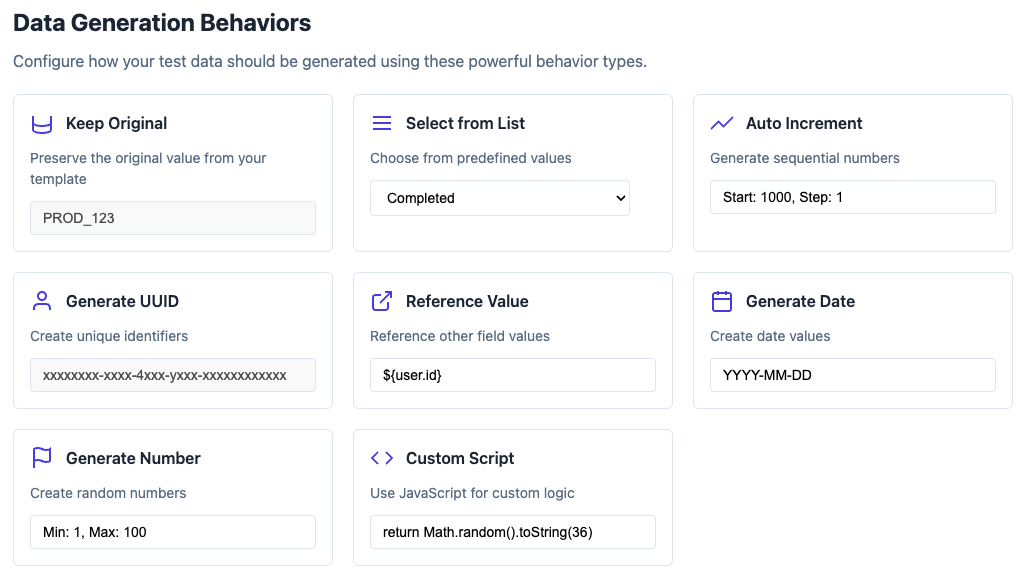
| Behavior | What it does | Typical use |
|---|---|---|
| Keep Original | Uses the value from the template | Everything that does not need to change |
| Auto Increment | Counts up, also inside text such as ID-001 |
Order numbers, line numbers |
| Generate UUID | A new unique identifier, with optional prefix or suffix | Message IDs, correlation IDs |
| From List | Picks from a list you maintain, in order or at random | Countries, product codes, customer names |
| Generate Date | Increments, offsets from today, fixed or random dates | Created dates, delivery dates |
| Generate Number | Random integer or decimal within a range | Quantities, amounts |
| Reference Value | Copies the generated value of another field in the same file | The same ID in header and footer |
| Custom Script | A JavaScript expression | Anything the others do not cover |
Next to each field you see the original value and a preview of what will be generated, so mistakes show before you generate anything.
Keeping Files Consistent
Random values in every field give files that no system will accept. Two behaviors keep the data coherent.
Reference Value makes one field follow another. If the order number appears in the header and again in a payment reference, generate it once and let the second field refer to the first.
Custom Script handles the rest. A script gets the original value, the file index, and row, which gives access to the other fields of the same item. For example, an ID with a fixed width:
// TD0000002, TD0000003, ...
const number = 2 + index;
return `TD${number.toString().padStart(7, "0")}`;
Or a classification derived from another field:
const age = parseInt(value || "0");
if (age >= 65) return "Senior";
if (age >= 18) return "Adult";
return "Minor";
Fields Inside Lists
Real files have repeated parts: order lines, contacts, transactions. In a script, arrayIdx holds the position of the current item in its list and index the number of the file, so the two together give a value that is unique for every line of every file:
// L-0-0, L-0-1, ... for the first file, L-1-0, L-1-1, ... for the second
return `L-${index}-${arrayIdx}`;
Generating and Reusing
Set the number of files and click Generate. The result is a set of files with the same structure as the template and your rules applied.
Two things save time the next time:
- Save the configuration. The rules for a template can be saved under a name and applied again later.
- Maintain lists once. Lists for From List are managed in one place and can be reused across templates.
A Template That Represents the Data
Generated files are only as realistic as the template. If production files come in several variants, for example with and without a delivery address, generate from one template per variant.
To find out which variants exist, run the real files through the Data Analysis module first: it groups the files by structure and shows how often each field occurs, which tells you both how many templates you need and which fields are optional.
All of it runs locally in your browser, so the production file you use as template is not uploaded anywhere.
See the Test Data documentation for every option, or read about the behaviors in more detail.