XSLT is still the most direct way to turn one XML document into another, or into text, HTML or JSON. Running it has been less direct: a command-line processor to install, an IDE with a license, or an online tester that takes one file at a time and wants you to paste your data into a web form.
Data Transform is a new module in Nodeflip that runs XSLT in the browser, on one file or on thousands.
What It Does
- Runs XSLT 1.0, 2.0 and 3.0 stylesheets, using SaxonJS.
- Transforms one file, several files or every XML file in a ZIP, and gives the result as a file or as a new ZIP with the same names and folders.
- Shows a live preview of one file next to its result while you edit the stylesheet.
- Shows what the selected lines of the stylesheet produce, which is the quickest way we know to find out why a result is not what you expected.
Everything runs locally. Your files and your stylesheets are not uploaded.
A Short Example
Here is an order, and a stylesheet that summarizes its lines per unit:
<xsl:stylesheet version="3.0" xmlns:xsl="http://www.w3.org/1999/XSL/Transform"
                xpath-default-namespace="urn:example:orders">
  <xsl:output method="xml" indent="yes"/>
  <xsl:param name="label" select="'summary'"/>

  <xsl:template match="/">
    <orderSummary label="{$label}" number="{//OrderNumber}" lines="{count(//Line)}">
      <xsl:for-each-group select="//Line" group-by="Quantity/@unit">
        <unit name="{current-grouping-key()}" quantity="{sum(current-group()/Quantity)}"/>
      </xsl:for-each-group>
    </orderSummary>
  </xsl:template>
</xsl:stylesheet>
xsl:for-each-group is XSLT 2.0 and later, so this stylesheet does not run in the XSLT 1.0 processors that browsers have built in. In Data Transform it runs as it is.
Load the order files and the stylesheet in Files, open Data Transform, choose the stylesheet, and switch to the Transform tab:
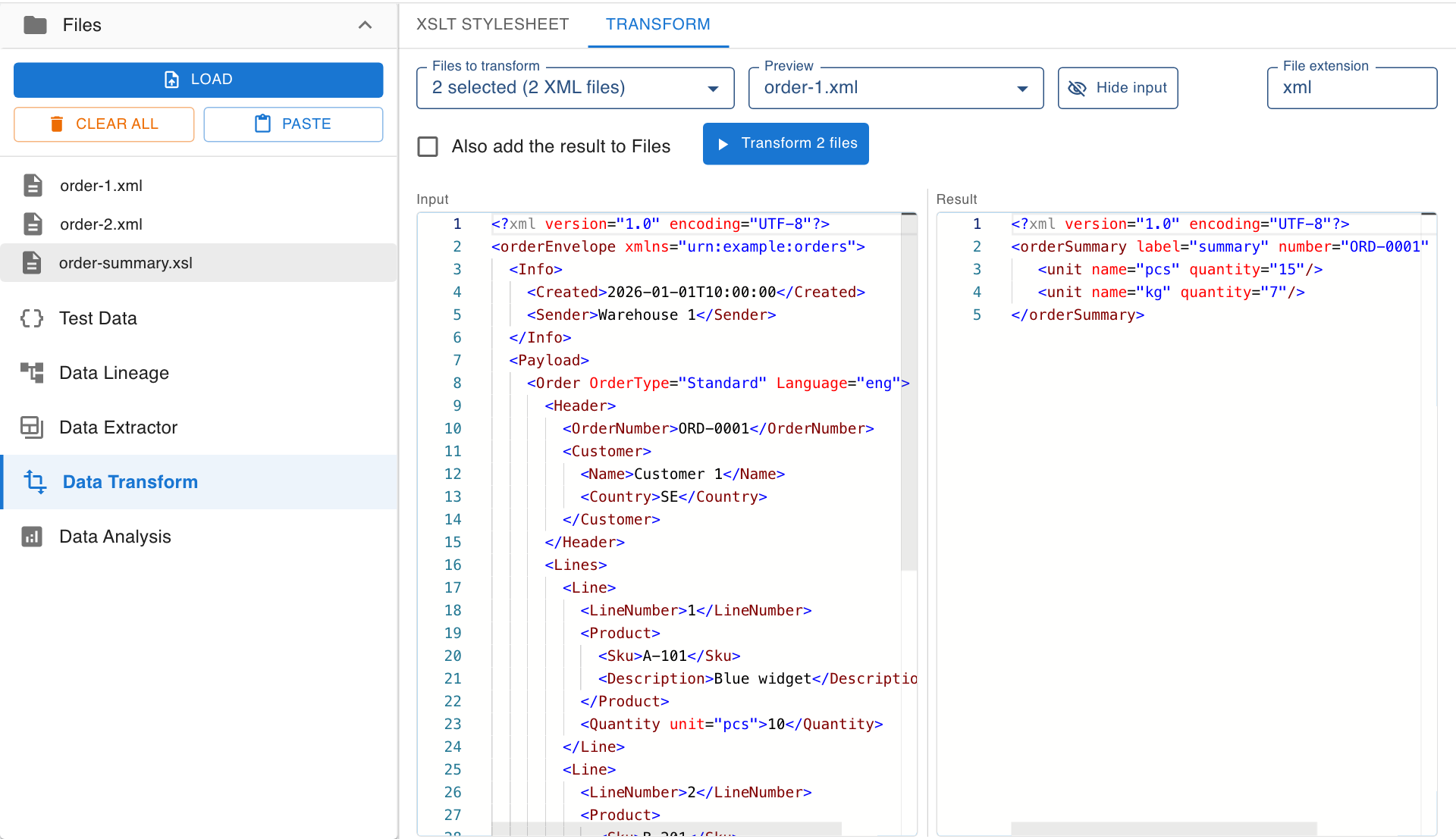
The result on the right follows every change you make to the stylesheet.
Parameters Without Editing the Stylesheet
The stylesheet above declares a parameter, label. Data Transform reads the xsl:param declarations and shows a field for each, with the default from the stylesheet as a hint. Fill in a value and the preview updates. The same stylesheet can then be run with different settings without changing it.
See What the Selected Lines Produce
When a stylesheet gives the wrong result, the usual method is to add xsl:message here and there and run it again. Data Transform has a shorter way: select the lines you wonder about.
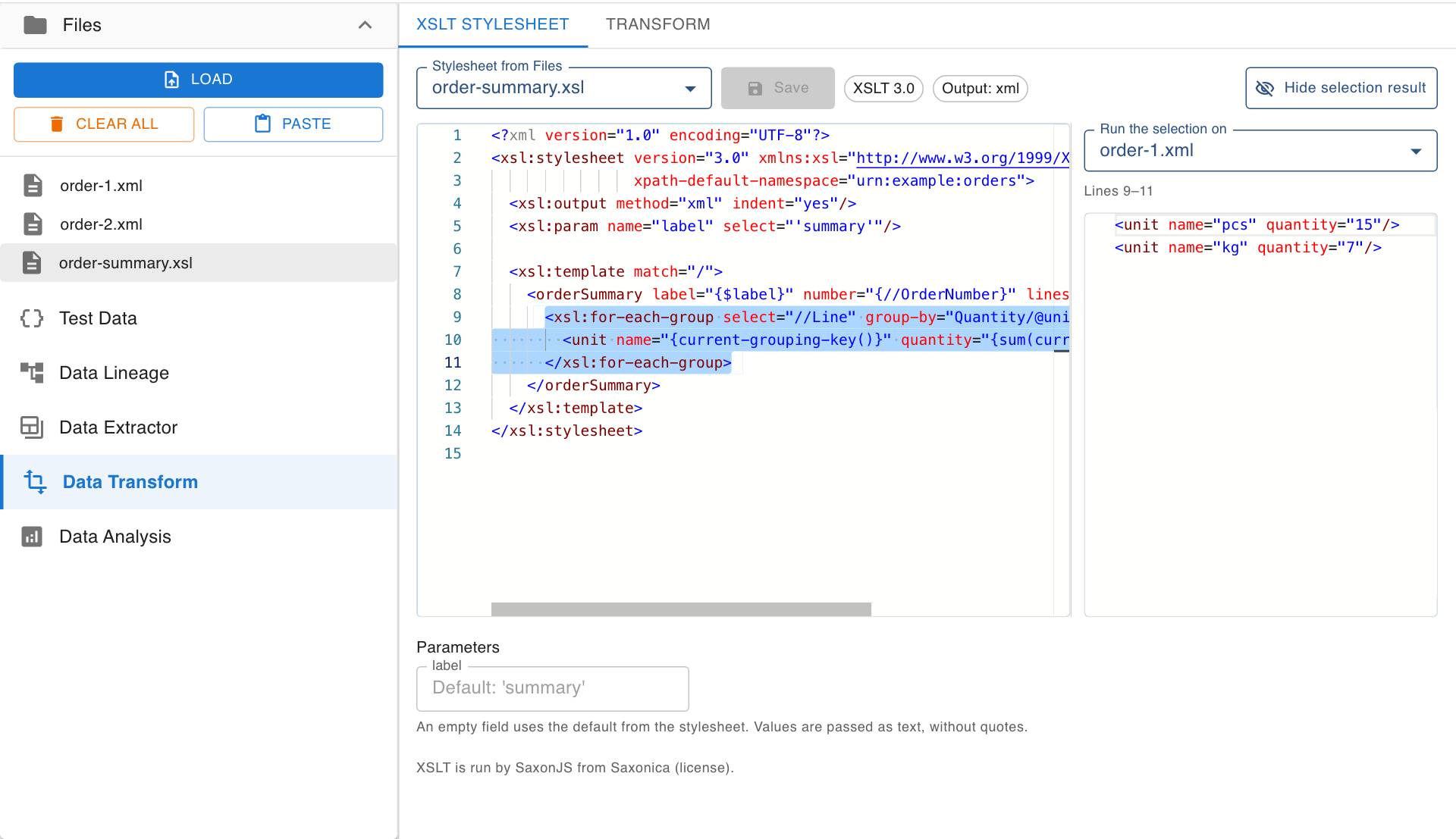
A panel next to the editor shows what exactly those lines write for the file you choose: elements, attributes and text, once for every time the lines run. Select a variable to see its value. If you select part of an instruction, the selection is widened to the whole instruction.
From One File to a Whole Archive
When the preview looks right, select all the files you want, or a ZIP, and click Transform:
- One file gives one file.
- Several files give a ZIP with one result per file.
- A ZIP gives a new ZIP with the same file names and folders.
Files that cannot be transformed are listed after the run, and the rest are still saved. With Also add the result to Files, the transformed files are added to Nodeflip as well, so that you can open them in the viewer, compare them with the originals, or check all of them at once in Data Analysis.
Why Not the Browser’s Own XSLT?
Browsers have had an XSLT processor for a long time, but only for version 1.0, and Chrome has announced that it is removing its built-in support. Data Transform does not depend on it. The stylesheet is compiled once by SaxonJS and applied to every file in a background worker, so the page stays responsive during large runs.
Availability
Data Transform is included in the Free, Pro and Pro+ plans. Loading ZIP archives requires Pro or Pro+.
Open Nodeflip and choose Data Transform in the menu, or read more on the feature page and in the documentation.